History: MultilangVsNetQuickTourForms
Preview of version: 35
Multi-Language Add-In for Visual Studio
Quick Tour (Windows Forms)
Activating the Multi-Language Add-In
After you have installed the Add-In, there will be a new menu item in the Tools menu in Visual Studio.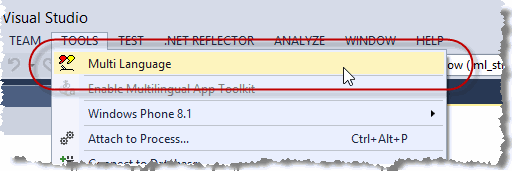
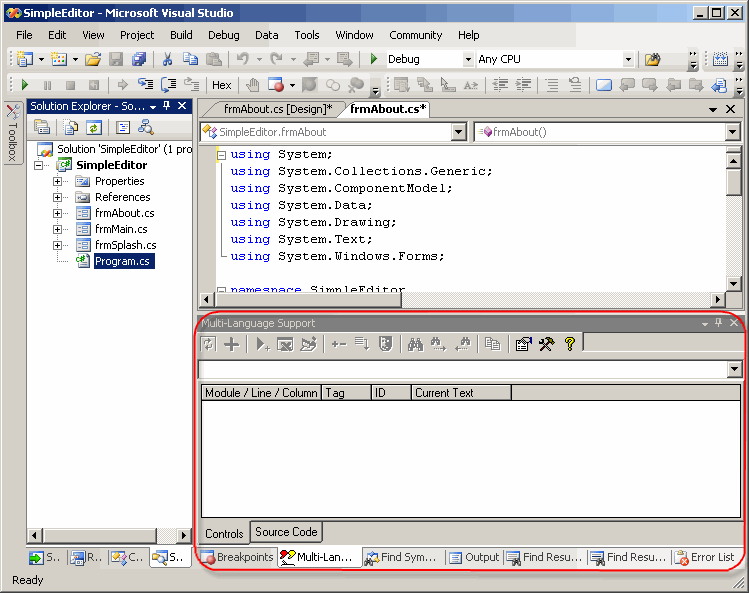
This menu item activates the Add-In and shows it in a tool-window. You can dock this window at the side of the main Visual Studio window, or drag it into a tab group, like other tool windows in Visual Studio. It's probably best to place it at the bottom, in a wide format.
Selecting a project
A Visual Studio solution may contain multiple projects. However, the Multi-Language Add-In always works with a single project. To get started, you must first select the project. There are two ways to do this.
| from a dialog | When you select the Add-In from the tools menu, it will probably show a list of the projects in a dialog. Simply select the project and click on OK. 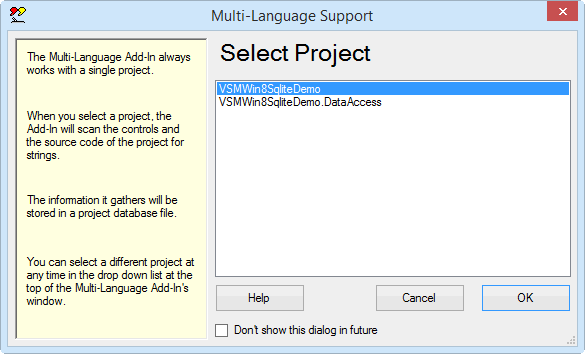
This dialog can be disabled, so if somebody else has already worked with the Add-In, it might not appear. |
| from a drop down list | At the top of the Add-In's main window, just below the toolbar, there is a drop down project list 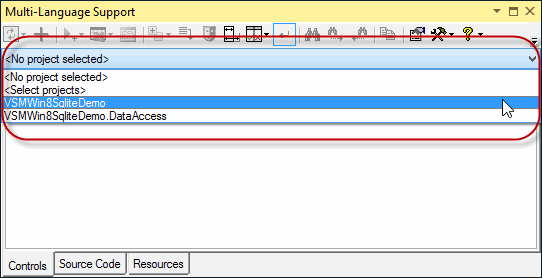
You can select a different project at any time from this list. |
Initialising the project for localization
When you select a project for the first time, you must specify what the original language of the project is. The Add-In will show a list of the languages supported by Windows.
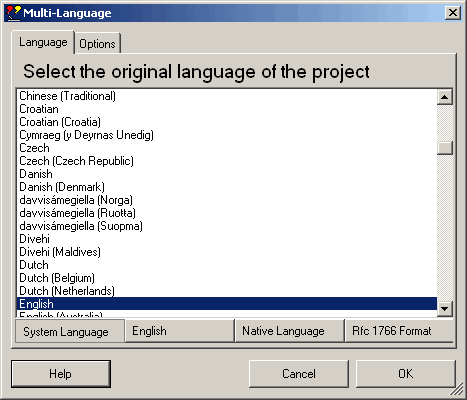
Select the original language and click on OK.
(The buttons below the list change the way the list is displayed. In particular, the button English simply shows the language names in English. It does not select English in the list).
This dialog will probably be followed by second dialog, with options for scanning the project. Just click on OK to accept the default options.
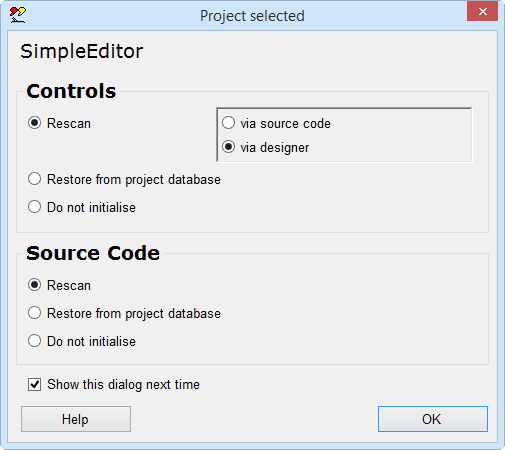
The Add-In will now add two new files to your project.
| <project name>_ml.mlb | This is the project database used by the Add-In. It is added to the project with BuildAction=None. |
| mlstring.vb or mlstring.cs or mlstring.h + .cpp | This module contains support functions, in particular the function ml_string(), which is used to load localized strings. |
Scanning the project
The Add-In will now scan the project. This is performed in two phases:
- scanning controls
- scanning source code
In the first phase, the controls in each Form and each ))UserControl(( are scanned for properties with the localizable attribute. In the second phase, the source code of the project is scanned for texts which may require translation.
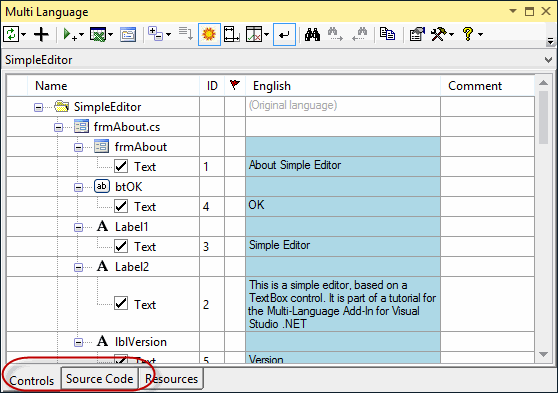
The results of the scan are displayed in two separate grids in the Add-In's window. You can switch between these grids using the tabs at the bottom of the window.
Adding a second language
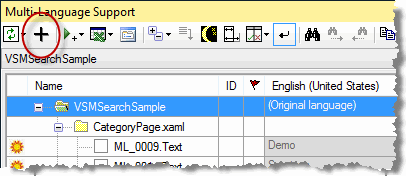
To add a new language to the project, click on the  symbol on the Add-In's toolbar
This brings up a dialog very similar to one where we selected the original language of the project. |
|

|
Select a new language and click on OK to add this language to the project. |
Some languages, such as German or French, are considered to be neutral languages. The regional variations, such as German(Germany), German(Austria), French(France) or French(Canada) are referred to as specific languages. You should always add the neutral language before adding a related specific language. If you do choose to add a specific language, the Add-In will give you the option of adding both neutral and specific languages or only the neutral language.
After adding the second language, the Add-In will
- add a new column to the grids for the new language
- search for translations of common texts such as OK and Cancel in the Global Translations Database
Now we will take a closer look at the two grids.
The controls grid
To see the controls grid, make sure that the controls tab at the bottom of the window is selected. The grid should look something like the following screenshot.
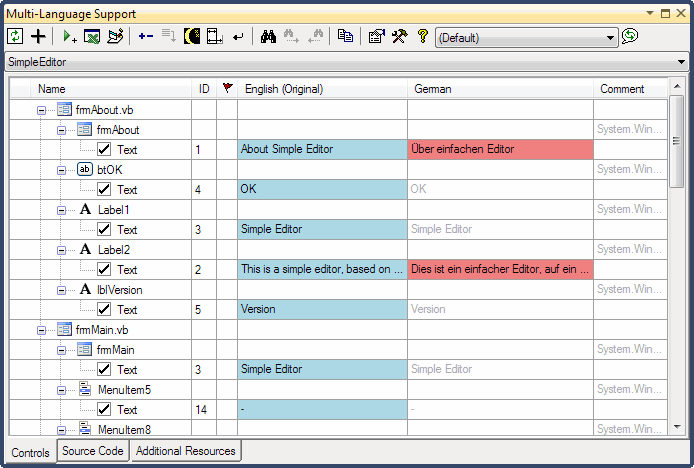
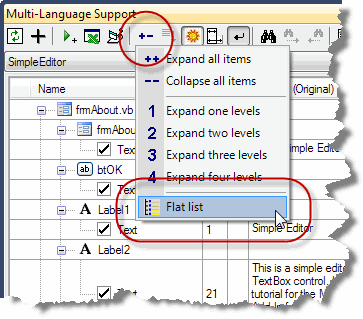
By default, the properties are shown in a hierarchical manner, showing the association of properties to controls. As an alternative, you can view the properties on each Form or ))UserControl(( in a flat list. To select this mode, click on the  button on the toolbar and then select Flat list from the menu, as shown below:
The controls grid will then look something like the following screenshot.

To enter a translation, simply click in cell and type in the new text. If you are able to translate the text yourself, this is the easiest way enter translations.
If a text is shown in light grey, then it is the text which would be retrieved at runtime via the resource fallback mechanism. In general, if a text is not defined for a specific language (e.g. Spanish(Mexico)) then the text for the neutral language (e.g. Spanish) would be used. If this has not been defined, then the original text in the project would be used.
The check boxes to the left of the property name indicates that the text has been selected for translation. By default, all properties which contain a non empty string are selected. In the screenshot above, you can see two menu separators with the text "-". It makes no sense to translate these, so we can remove deselect them by clicking on the check boxes.

In fact, we never really want to see these properties again, so we can go one step further and hide them completely. To do this, we first click on the sun symbol  at the left hand margin. The sun symbol is replaced by a moon symbol
  .
.
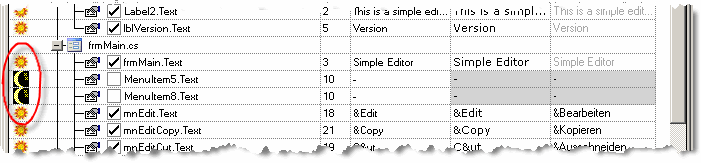
To actually hide the lines, click on the mask symbol on the toolbar  . If you want the hidden properties to be shown again, click on the
button on the toolbar and select ''Show hidden properties" from the menu.
. If you want the hidden properties to be shown again, click on the
button on the toolbar and select ''Show hidden properties" from the menu.
By default, properties containing empty strings are not shown in the grid. It very rarely makes sense to translate empty strings, so this if sensible setting. If you do want to see localizable properties containing empty strings, then you can modify this option in the settings dialog. To show this dialog click on the settings button  on the toolbar. Details of this and other options are described in the online help file.
The source code grid
To see the source code grid, make sure that the source code tab at the bottom of the window is selected. The grid should look something like the following screenshot.

As in the controls grid, you can select a string for translation by clicking in the checkbox to the left of the line number. In contrast to the controls grid however, none of the texts are selected automatically.
When you click on a line in the source code grid, the corresponding line in the source code will be shown in the source editor. Alternativly, if you select a line in the source editor, which contains a string, you can locate this line in the source code grid by clicking on the goto line button  on the toolbar.
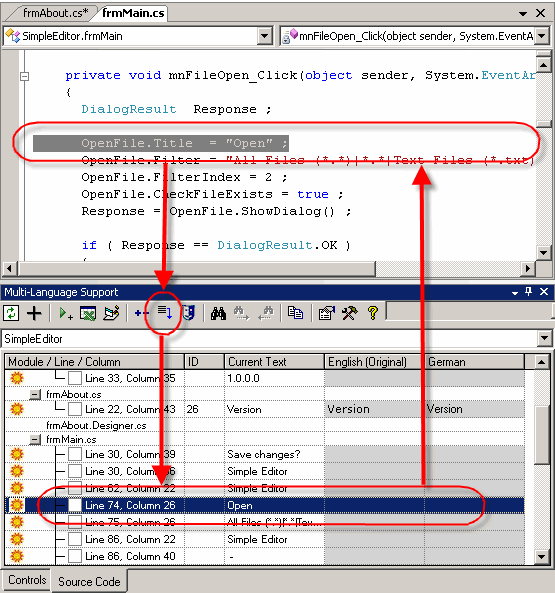
When you select a string for translation by clicking on the checkbox, the Add-In will assign a string ID number to the text and insert a call to the function ml_string() into the source code.
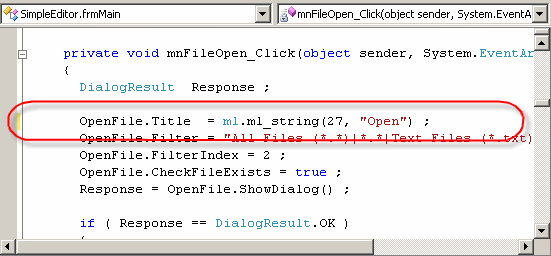
As you can see, this function has two parameters:
- the String ID number and
- the original text
In fact only the string ID will actually be used, so you could consider the original text as a comment. Leaving the original text in the source code serves to make the code more readable.
The exact format of the function ml_string depends on the computer language used in the project.
| C# | OpenFile.Title = ml.ml_string(27, "Open") ; |
| VB.NET | OpenFile.Title = ml_string(27,"Open") |
| C++ | OpenFile->Title = ML_STRING(28, "Open") ; |
The function ml_string is implemented in the module mlstring which was added to the project from a template file (usually in the directory C:\Program Files\MultiLang2005\Templates).
Once a string has been selected for translation, you can enter a translation simply by typing a new text into the grid.
As with the controls grid, we also have the option of hiding texts which do not require translation. For example, none of the texts in the module AssemblyInfo.cs need to be translated.
As before, we hide a string by clicking on the sun symbol
at the left hand margin, which is then replaced by a moon symbol
. At the same time, the comment //MLHIDE ('MLHIDE in VB.NET) is added to the end of the source code line, to mark it as hidden.
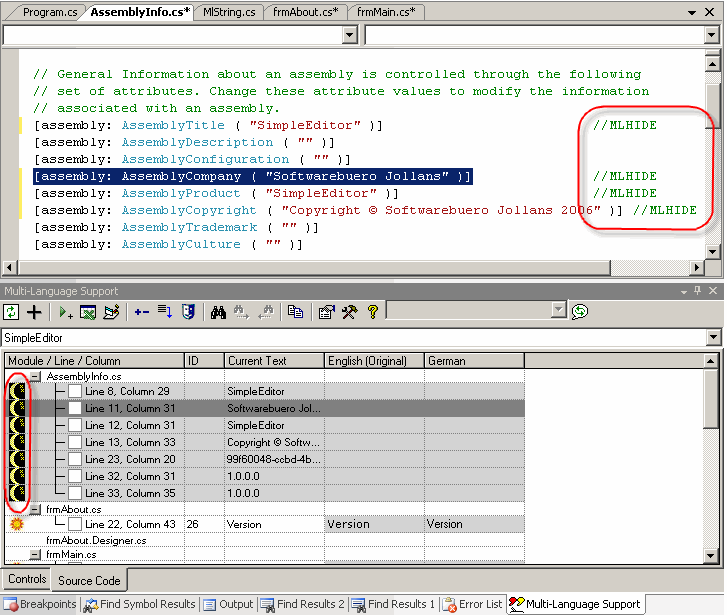
To actually hide the lines, click on the mask symbol on the toolbar
. This works a little differently to controls grid. The hidden items are collapsed behind a new node hidden and you can view them at any time simply be expanding this node.
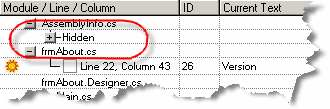
It is good practice to either select or hide every string in the project. If new strings are added to the source code, it is then much easier to find the new strings in the grid. Of course, you can also add the MLHIDE comment to lines in the source code editor. When the Add-In scans the project, it will automatically hide these strings.
Filtering texts with regular expressions
In many cases, you will be able to select, or alternativly hide, texts in the source code based on simple rules. For example you will probably not want to translate SQL strings, or the parameters to an event logging function. On the other hand, you will probably always want to translate the parameters to the MessageBox function.
You can handle operations like this easily with the feature "Filter with regular expressions". You can select this option from the tools menu as shown below, or from the context menu in the source code grid.
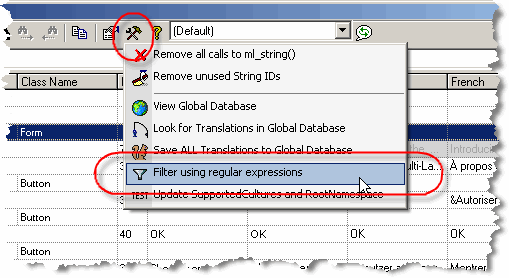
This command shows the filter dialog, in which you can enter a search string as a regular expression. For example in the screenshot shown below, the search string "^select " will search for any string starting with the word select, with the option to hide the string.

The dialog offers the option to match only the string, or the complete source code line. By matching the complete code line, it is easy to detect strings used in particular function calls.
When the string is found, the Add-In asks whether the specific string should actually be hidden.

Using the translation memory
Aside from the project database used to store the translations for an individual project, the Multi-Language Add-In also stores all translations in global translations database. When it detects an exact match between a new text and a translation stored in the global database, it will insert the translation automatically. This is great for common terms like OK and Cancel.
If you are able to translate the texts yourself, then the translation memory provides an additional help, based on the translations stored in the global database. To use the translation memory, first click in the cell you want to edit, and then hit F3 or F12. The following screenshot shows the translation memory dialog with the text Add a new language to the project, which should be translated into German.

In the lower part of the dialog, there is list of existing translations, containing one or more of the same words as the string to be translated. The list is sorted according to the number of matching words, so the most useful translations should be near the top. You can copy words out of the grid and edit the new translation in the edit box marked Translation.
Obviously, the common words "a", "to" and "the" will not be of much help. If you select the tab Ignored words, you can select the words which are to be ignored. The Add-In keeps a list of ignored words in the global database and automatically ignores these words in future.
The translation memory feature is particularly useful for technical terms where you might not be familiar with the correct translation and where you want to use terms consistently.
Using the Spreadsheet export
If you are not able to translate the texts yourself, you will have to give them to a translator. For this purpose you can use the Spreadsheet export/import feature. There are two versions of this feature:
- the simple version with one worksheet and no macros (for Excel or OpenOffice)
- the three worksheet structured export with macro support (for Excel)
Both versions are accessed via the Excel symbol  on the toolbar.
The screenshot below shows the format of the simple spreadsheet file. As you can see, the first column contains the string ID number, followed by a column for each language. The first two rows contain the language names and the locale ID numbers.
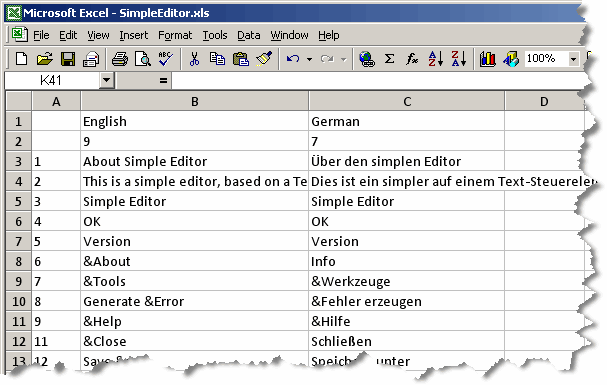
The translator should update texts in the appropriate language column, without changing the format of the file. When the translator is complete, you can import the translations back into the project.
The three worksheet format contains two additional worksheets, which closely resemble the controls grid and the source code grid in the Add-In. These worksheets provide more context information for the translator. Because all texts in the additional worksheets are also present in the third worksheet, Excel macros are used to maintain consistency within the file. The macros also provide some additional functionality, similar to some of the functions provided by the Add-In.
The three worksheet is to be recommended, unless your organization is adamantly opposed to using macros.
Exporting the texts to resource files
In order for the translations to be used in your project you must:
- set the Localizable attribute in each Form and each UserControl
- export the texts to resource files in the ResX format
To do this, click on the runtime support symbol  on the toolbar and select the command Native Runtime Support from the dropdown menu.
 |

|
|
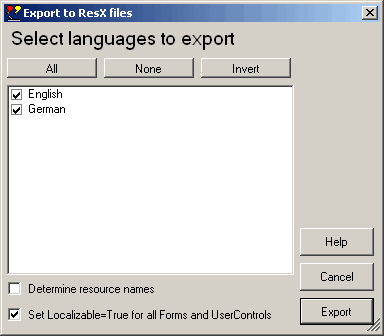
This command will bring up a dialog, from which you can select the languages to export and a couple of other options. Click on Export to start the operation. |
|
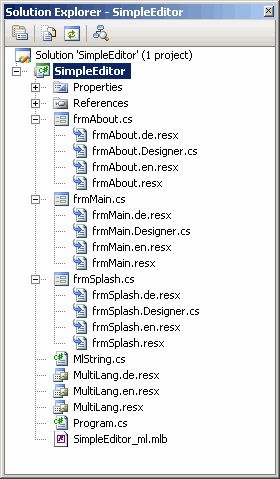
When it is completed, you will see in the solution explorer window, that a number of ResX files have been added to your project. All of these files have the BuildAction=EmbeddedResource. When you compile your project, additional so called satellite dlls will be generated. These dlls are created in subdirectories of the bin\Debug or bin\Release directories, named according to the language abbreviation (ISO 639-1 and ISO 3166, formerly RFC 1766). |
|

The compiled project is now localized. Windows will initialise the application to use the language of the Windows user interface. For example, if you have added support for German, and you install your application (with the satellite dlls) on computer running a German version of Windows, then German resources will automatically be used.
Selecting the language of the application
It is very practical to be able to select the language for your application, independently of the the language used by Windows. This is almost essential for testing, but you may also want to make it a permanent feature of your application. We must consider two cases separately:
- selecting the language when the program starts
- changing the language of the running program
Technically, it is very easy to set the language of a program when it starts up. It is only necessary to set the CurrentUICulture property of the main thread, before the main form of the program is called.
|
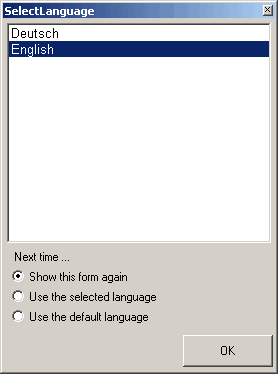
The Multi-Language can add a form to your project which allows the user to select the language when the program starts, as shown in the following screenshot. With this dialog you can select the language, and specify whether the dialog should be shown next time the program is started. |
|
To add this feature, click on the runtime support symbol
on the toolbar and select the command Add language selection form to your project from the dropdown menu. |

|

|
This brings up a dialog showing which actions are necessary to add this dialog to your project. Click on Add Now to perform start the operation. This will add a form called SelectLanguage to your project, and some code to show the form when the program starts up. |
Changing the language of a running program
A little more effort is required to change the language once the user interface of the program has been initialised. The problem breaks down into three operations:
| Selecting a new language | To select a new language, it is simply necessary to show the SelectLanguage form, described above. This can easily be added to a menu command in your application. |
| Broadcasting events | Your application may use multiple Forms, each of which may contain UserControls. When the language is changed, it is necessary to update the user interface of each active component. The best way to handle this is with an event mechanism. In general, you may use UserControls in multiple, separately compiled components. For this purpose, events must be generated via a public interface. The easiest way to handle this is to generate the events using a singleton object, compiled in a separate project. |
| Updating the user interface | Each Form and UserControl requires an event handler, which updates the user interface when the language is changed. The function InitializeComponent generated by Visual Studio is not designed to be called repeatedly. To update the user interface, the Add-In can generate a function called ml_UpdateControls to reinitialise the properties in the user interface. |
|
The Multi-Language Add-In can generate the code for the second two points automatically, via the menu command Support for Runtime Language Switching. A minor change is required to the SelectLanguage form, in order to generate a language changed event. This is described in a tutorial in the Add-In's help file. |

|